Customizing GoHighLevel for Your Business Needs (Complete Guide)
Discover how to customize your GoHighLevel dashboard for better workflows, branding, and performance. Learn GHL customization, widgets, CSS, and dark mode tips.
 Shawaiz Hassan

If your GoHighLevel dashboard feels generic, you’re not alone. Many users rely on the default setup, even though GoHighLevel offers powerful customization options.
Here’s the truth: a well-structured high level dashboard can improve your workflow, boost team productivity, and create a better experience for your clients. And no—you don’t need to be a developer to get started.
In this guide, you’ll learn how to approach GoHighLevel customization the right way. We’ll keep it practical, based on real platform capabilities, and aligned with Google’s quality guidelines.
Why Customizing Your GoHighLevel Dashboard Matters
GoHighLevel positions itself as an all-in-one CRM and marketing platform. According to its official help center, the goal is to centralize operations—funnels, CRM, automation, and communication—into one place.
But a default gohighlevel dashboard interface can feel cluttered. That’s where customization comes in.
Key Benefits
1. Faster Decision Making
A clean ghl dashboard shows only what matters. You don’t waste time hunting for data.
2. Better Branding
A custom ghl dashboard helps agencies present a professional, branded experience.
3. Improved User Experience
A structured dashboard ghl reduces confusion and improves navigation.
4. Client Retention
If you offer SaaS services, a polished go high level custom dashboard builds trust instantly.
Understanding the GoHighLevel Dashboard Interface
Before you customize anything, understand the core structure.
The gohighlevel crm dashboard interface includes:
Pipelines and opportunities
Conversations
Marketing campaigns
Reporting widgets
Each section plays a role. When you customize your go high level crm dashboard, you decide what deserves priority.
Core Areas You Can Customize
Let’s break down what you can actually control inside GoHighLevel.
1. Layout and Navigation
Start with structure.
A good highlevel dashboard template:
Highlights key metrics first
Reduces unnecessary clicks
Groups related tools together
Think of it like organizing your desk. If everything has a place, you work faster.
2. Custom CSS for Advanced Control
This is where things get interesting.
With gohighlevel custom css dashboard, you can:
Change colors and fonts
Adjust spacing
Improve button styles
Create go high level dark mode
Many users implement ghl dark mode using CSS to reduce eye strain and create a modern feel.
👉 Keep your CSS clean and tested. Avoid copying random code from unknown sources.
3. Custom Dashboard Widgets
Widgets turn your dashboard into a live control panel.
Using gohighlevel custom dashboard widgets, you can display:
Sales performance
Lead activity
Campaign results
A well-designed gohighlevel custom dashboards setup gives you insights at a glance.
4. Theme Customization
A ghl theme customizer helps you maintain consistency.
You can:
Apply brand colors
Standardize layouts
Improve readability
This matters a lot if you manage multiple client accounts.
Step-by-Step: Customize Your GHL Dashboard
Let’s keep this simple and actionable.
Step 1: Define Your Use Case
Ask yourself:
Are you customizing for internal use?
Or for clients?
A go high level dashboard for a team looks different from a SaaS client portal.
Step 2: Clean the Dashboard
Remove clutter.
Most users overload their ghl dashboard customization with unnecessary elements. Instead:
Keep essential widgets
Hide unused features
Focus on clarity
Step 3: Apply Branding
This is where your dashboard starts to feel “yours.”
With gohighlevel customization, you can:
Add your logo
Match your brand palette
Align typography
Consistency builds credibility.
Step 4: Add Custom CSS
Use gohighlevel custom css to refine the interface.
For example:
Enable go high level dark mode
Improve spacing
Adjust layout alignment
Keep changes small and test them often.
Step 5: Optimize Widgets
Place important data at the top:
Revenue
Leads
Conversion rates
A strong custom ghl dashboard answers key questions instantly.
Step 6: Test Responsiveness
Your high level dashboard must work on:
Desktop
Tablet
Mobile
Google emphasizes user experience across devices, and your dashboard should follow the same principle.
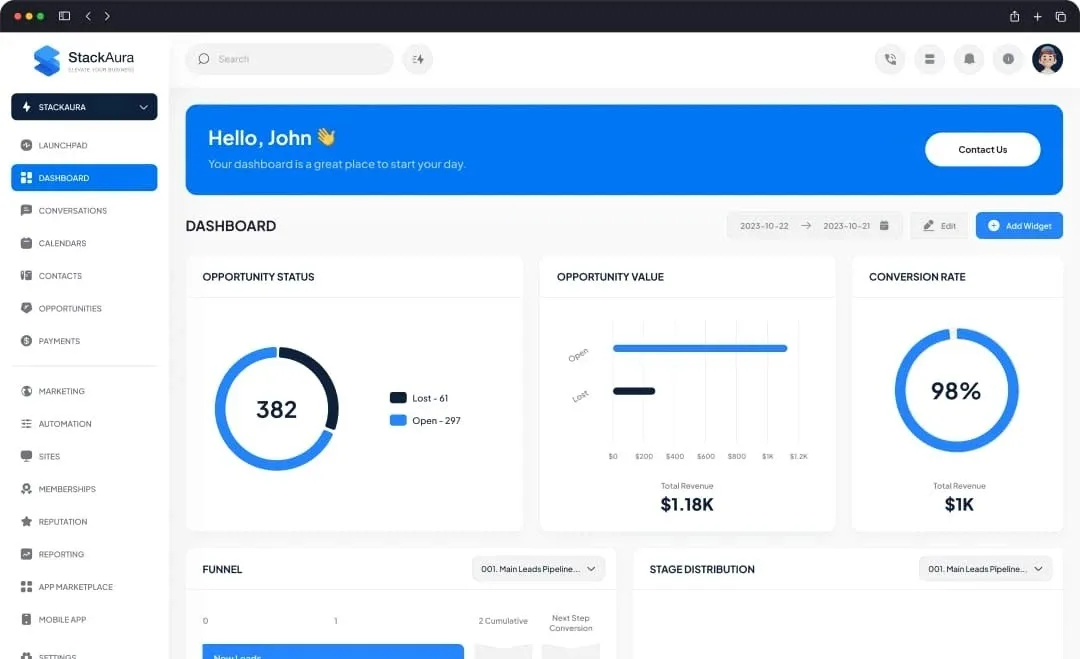
Visual Example of Dashboard Customization
Here’s an example of how a customized dashboard can look cleaner and more structured:
Notice how the layout feels more organized and focused. That’s the goal of gohighlevel dashboard customization.
Best Practices for GoHighLevel Customization
Keep It Simple
A simple highlevel dashboard always performs better than a complex one.
Focus on Usability
Design should help users act faster.
If your dashboard ghl looks good but slows you down, it fails.
Avoid Over-Customization
Too much CSS can:
Break layouts
Cause bugs after updates
Reduce performance
Use Trusted Resources
Rely on:
GoHighLevel Help Center
Verified community discussions
These sources ensure your gohighlevel custom css dashboard stays reliable.
Common Mistakes to Avoid
1. Overloading the Dashboard
Too many widgets create confusion.
2. Ignoring User Experience
A flashy go high level custom dashboard means nothing if users struggle to navigate.
3. Using Unverified Scripts
Avoid random code. Stick to trusted methods.
4. Skipping Mobile Optimization
Your go high level crm dashboard should work everywhere.
When Should You Use a Professional Service?
Customization can get technical.
If you want:
Advanced UI design
SaaS-ready dashboards
Clean and scalable setups
It’s better to work with experts.
👉 Explore our GoHighLevel Dashboard Customization Services to get a professional setup tailored to your business.
👉 You can also check custom GHL dashboard solutions at Stackaura for advanced configurations.
👉 For agencies, our GoHighLevel customization services help create scalable dashboards quickly.
Advanced Customization Ideas
1. SaaS Mode Dashboards
Create client-friendly gohighlevel custom dashboard experiences with:
White labeling
Simplified UI
Role-based access
2. Dark Mode Optimization
Using gohighlevel dark mode:
Reduces eye strain
Improves focus
Creates a modern interface
3. Automation Integration
Connect your dashboard ghl with:
CRM workflows
Email campaigns
Funnel tracking
This turns your dashboard into a command center.
Trusted Sources & References
To ensure accuracy and credibility:
GoHighLevel Help Center: https://help.gohighlevel.com
GoHighLevel Official Platform Overview
Industry UX best practices (Nielsen Norman Group)
These sources emphasize usability, clarity, and efficiency—key principles in any ghl dashboard customization.
Final Thoughts
Customizing your GoHighLevel dashboard is not about making it look fancy. It’s about making it work better for you.
A clean, structured high level dashboard:
Saves time
Reduces confusion
Improves performance
And yes, it can also look great while doing all that.
If you want a professional, scalable solution, Stackaura can help you build a dashboard that actually works—not just one that looks good.