Menu

GoHighLevel Dashboard Customization Guide & Setup

8 mins

GoHighLevel Dashboard Customization: Build a Clean, Branded, High-Converting Workspace

If your GoHighLevel account feels busy the moment you log in, you are not imagining it. Many new users experience the same thing. The platform is extremely powerful, but the interface can feel overwhelming until it is organized around how your business actually operates.

That is not a problem with the software. It is simply what happens when a platform is designed to support many different industries and workflows at once.

A local service business, a marketing agency, and an online coaching company may all use GoHighLevel differently. Because of that, the default dashboard rarely feels perfectly tailored right away.

The solution is thoughtful customization.

This does not mean redesigning everything or diving into complicated code on day one. Instead, it means gradually organizing the system so the platform reflects how your team actually works.

This guide explains a practical approach to GoHighLevel dashboard customization. You will learn how to simplify the interface, structure pipelines, automate lead management, and create a workspace that supports daily operations.

You will also see when advanced options like GoHighLevel custom CSS, dashboard CSS, custom code, and custom JavaScript can be useful, and when they create unnecessary complexity.

By the end, you should have a dashboard that is easier to navigate, easier to train your team on, and easier to scale as your business grows.

Who This Guide Is For

This customization approach works well for several types of users.

Service business owners

Companies such as contractors, consultants, healthcare providers, and local service providers often use GoHighLevel to manage inquiries and appointments. Customizing the dashboard makes it easier to track leads and follow up with potential customers.

Marketing agencies

Agencies frequently manage multiple client accounts inside the platform. A structured customization process ensures every account follows the same layout and workflow, making onboarding and support easier.

Small sales teams

Teams responsible for lead conversion benefit from dashboards that clearly show where each opportunity stands in the sales process.

Businesses overwhelmed by the default setup

Many users search for ways to customize the GoHighLevel dashboard because the default layout feels cluttered. Customization helps transform the platform into a system that reflects how the business actually operates.

What Dashboard Customization Really Means

When people talk about customizing GoHighLevel, they often think about visual changes such as colors, themes, or layout adjustments.

While design elements are part of the process, they are not the most important aspect.

Effective customization focuses on aligning the platform with your workflow.

Instead of forcing your team to adapt to the software, you shape the software to match your processes.

Most businesses pursue customization for several reasons.

  • They want a dashboard that clearly shows the status of every lead

  • They want fewer distractions and a simpler interface

  • They want a consistent experience across multiple accounts

  • They want automation to handle repetitive tasks

  • They want a client portal that feels like a custom platform

When customization is done well, GoHighLevel becomes more than a tool. It becomes the operational system that supports the entire business.

The Three Layers of GoHighLevel Customization

Trying to customize everything immediately is a common mistake. The system can become harder to manage instead of easier.

A better approach is to think of customization in three layers.

Layer 1: Operational Customization

This layer focuses on how the system functions day to day.

Examples include:

  • pipeline structure and stages

  • lead capture forms

  • workflow automation

  • tag organization

  • task creation and assignments

  • standardized naming conventions

Most businesses gain the majority of value from this layer alone.

Layer 2: Experience Customization

Once the operational system works smoothly, the next step is improving the experience.

Examples include:

  • themes for pages and funnels

  • reusable templates

  • consistent design elements

  • branded colors and typography

  • standardized page layouts

This layer is especially important for agencies that manage multiple client accounts.

Layer 3: Technical Customization

The final layer involves deeper customization options.

Examples include:

  • GoHighLevel custom CSS

  • GoHighLevel dashboard CSS

  • custom code integrations

  • custom JavaScript

These tools allow greater control over the platform but should only be used when there is a clear purpose.

Step 1: Create a Clear Naming System

One of the fastest ways to improve your GoHighLevel dashboard is by organizing how items are named.

Without a naming system, dashboards quickly become cluttered with workflows, forms, and pipelines that are difficult to identify.

Example naming structure

Pipelines

  • Sales – Core Service

  • Sales – Premium Service

  • Client Onboarding

Forms

  • Form – Website Inquiry

  • Form – Consultation Request

  • Form – Service Quote

Workflows

  • WF – New Lead Email

  • WF – New Lead SMS

  • WF – Follow-Up Sequence

Tags

  • source:website

  • source:referral

  • service:consulting

  • intent:high

Why naming matters

A consistent naming structure allows team members to quickly find what they need. It also makes troubleshooting workflows and automations easier.

Step 2: Design a Pipeline That Matches Your Sales Process

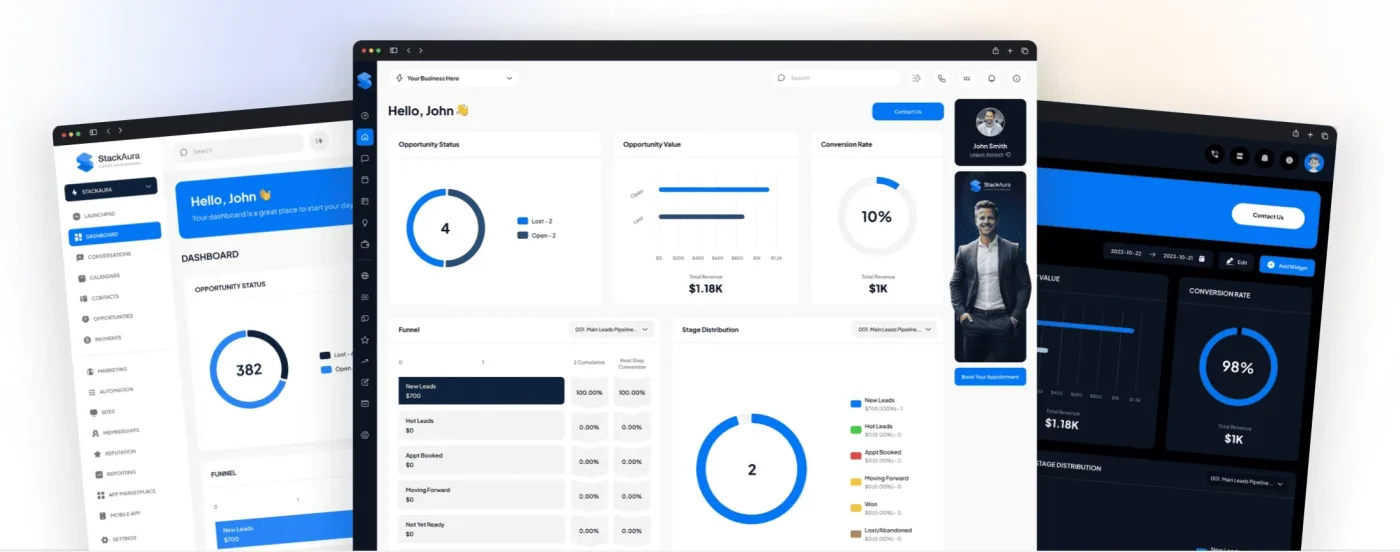
The pipeline is one of the most important parts of the GoHighLevel dashboard. It visually represents the journey a lead takes before becoming a customer.

Many businesses design pipelines that look organized but do not match their real sales process.

Instead, map out the actual steps your team follows when working with new prospects.

Example pipeline for a service business

  • New Inquiry

  • Contact Attempted

  • Qualified Lead

  • Estimate Scheduled

  • Estimate Sent

  • Job Approved

  • Job Completed

  • Opportunity Lost

Example pipeline for an agency

  • New Lead

  • Discovery Call Scheduled

  • Discovery Call Completed

  • Strategy Proposal Sent

  • Contract Negotiation

  • Client Won

  • Client Lost

Pipeline design tips

  • Use clear action-based stage names

  • Avoid vague stages such as miscellaneous

  • Assign responsibility for each stage

Pipeline stage decision guide


Stage Type

Keep It If

Remove It If

Waiting on Customer

Follow-up automation exists

Leads remain stuck

Needs Review

A team member reviews regularly

No one owns the stage

Quote Sent

Quotes are tracked here

Quotes are sent outside the system

A well-designed pipeline helps transform the dashboard into a visual management system.

Step 3: Capture Leads Automatically

Pipelines only work when leads enter them consistently. Manual entry often leads to missed opportunities.

Lead capture forms solve this problem.

Create a simple contact form

High-performing forms usually contain only a few fields.

  • Full name

  • Email address

  • Phone number

  • Service requested

  • Preferred contact method

Shorter forms typically generate more submissions.

Configure form automation

Each form submission should automatically perform several actions.

  • create or update the contact

  • add the lead to the correct pipeline stage

  • apply a source tag

  • assign the lead to a team member

This ensures every inquiry enters the CRM immediately.

Step 4: Build Fast Response Automation

Responding quickly to leads can significantly improve conversion rates.

Automation allows businesses to respond immediately without manual effort.

Basic workflow structure

Trigger

  • form submitted

Actions

  • send confirmation email

  • notify a team member

  • create follow-up task

Advanced workflow example

  • send confirmation email

  • send SMS response

  • wait ten minutes

  • send follow-up message if no reply

  • create call reminder task

Example confirmation email

Subject: Thanks for reaching out

Hi {{contact.first_name}}

We received your request and someone from our team will contact you shortly.

If you need immediate assistance, reply with a convenient time for us to reach you.

Example SMS message

Hi {{contact.first_name}} this is {{location.name}}. We received your request and will contact you shortly.

Automation helps ensure every lead receives attention quickly.

Step 5: Organize Dashboard Navigation

Teams often struggle with GoHighLevel because they are unsure which features they should use daily.

A simplified dashboard helps solve this problem.

Create a daily routine

Encourage your team to focus on a few consistent actions.

  • review pipeline updates

  • respond to new messages

  • complete assigned tasks

  • update opportunity stages

This keeps the platform focused on essential work.

Managing client access

For agencies or consultants, it is important to control which tools clients can access.

Typical client access includes:

  • conversations

  • pipeline overview

  • reporting dashboards

  • calendar bookings

Limiting access prevents confusion and improves adoption.

Step 6: Standardize with Templates

As your system grows, templates become increasingly valuable.

Templates allow you to replicate successful setups quickly.

Useful template assets

  • lead capture form template

  • sales pipeline template

  • lead response workflow

  • follow-up nurture sequence

  • review request automation

  • onboarding workflow

Template stack example


Template

Benefit

Outcome

Lead Form Template

Faster setup

Consistent lead intake

Response Workflow

Immediate communication

Higher lead engagement

Follow-Up Workflow

Consistent nurturing

Better conversions

Review Request

Reputation growth

More customer reviews

Onboarding Workflow

Organized process

Reduced errors

Templates make it easier to scale GoHighLevel across multiple teams or client accounts.

Step 7: Implement Branding and Themes

Branding improves the overall user experience.

Many users search for GoHighLevel themes or theme builders because they want consistent design across pages.

Basic theme guidelines

  • choose one primary brand color

  • select one accent color

  • maintain consistent typography

  • standardize button styles

This helps create professional looking pages without excessive customization.

Step 8: Using Custom CSS and Code

Advanced customization can improve usability but should be used carefully.

When to use custom CSS

  • adjusting page spacing

  • improving typography

  • hiding unnecessary interface elements

  • creating consistent page layouts

When to use custom JavaScript

  • advanced form logic

  • dynamic page behavior

  • custom tracking events

Before adding custom code, consider several questions.

  • Can the same result be achieved using native features

  • Will platform updates affect this code

  • Will team members understand how it works

Step 9: Add High Impact Automations

Once the basic system is functioning smoothly, additional automations can improve performance.

Missed call follow-up

Automatically send a text message when a call is missed. This helps prevent potential customers from contacting competitors.

Appointment reminders

Send automated reminders before scheduled appointments.

  • 24 hours before

  • 2 hours before

  • 15 minutes before

These reminders significantly reduce no-show rates.

Review request automation

Automated review requests help build credibility.

They can be triggered:

  • after service completion

  • after payment confirmation

  • after project delivery

Quick Implementation Checklist

  • create naming conventions for assets

  • build a pipeline based on your real sales process

  • add automated lead capture forms

  • implement fast response workflows

  • organize tags and segmentation

  • create reusable templates

  • apply consistent branding elements

  • add advanced customization only when necessary

Turn Your GoHighLevel Dashboard Into a Growth Engine

A well organized GoHighLevel dashboard does more than improve appearance. It improves how the entire business operates.

When properly configured, the platform provides clear visibility into the sales pipeline, faster responses to new leads, and automated follow-ups that reduce manual work.

Teams gain a system that is easier to understand and easier to use every day.

Businesses benefit from better organization, faster communication, and improved lead conversion.

Start a free trial or request a demo to explore how a customized GoHighLevel dashboard can become a central system for managing leads, communication, and automation.

Questions and Answers

What is the fastest way to customize the GoHighLevel dashboard

Start by organizing pipelines, creating lead capture forms, and implementing basic workflow automation.

Are GoHighLevel themes necessary

Themes are helpful for branding and design consistency but are not required for operational success.

Should I use GoHighLevel custom CSS

Only when native tools cannot achieve the desired design or functionality.

What should be built after the initial setup

Additional automations such as missed call responses, appointment reminders, and review request campaigns help improve lead conversion and customer engagement.

Customize Your GoHighLevel Dashboard Now →